
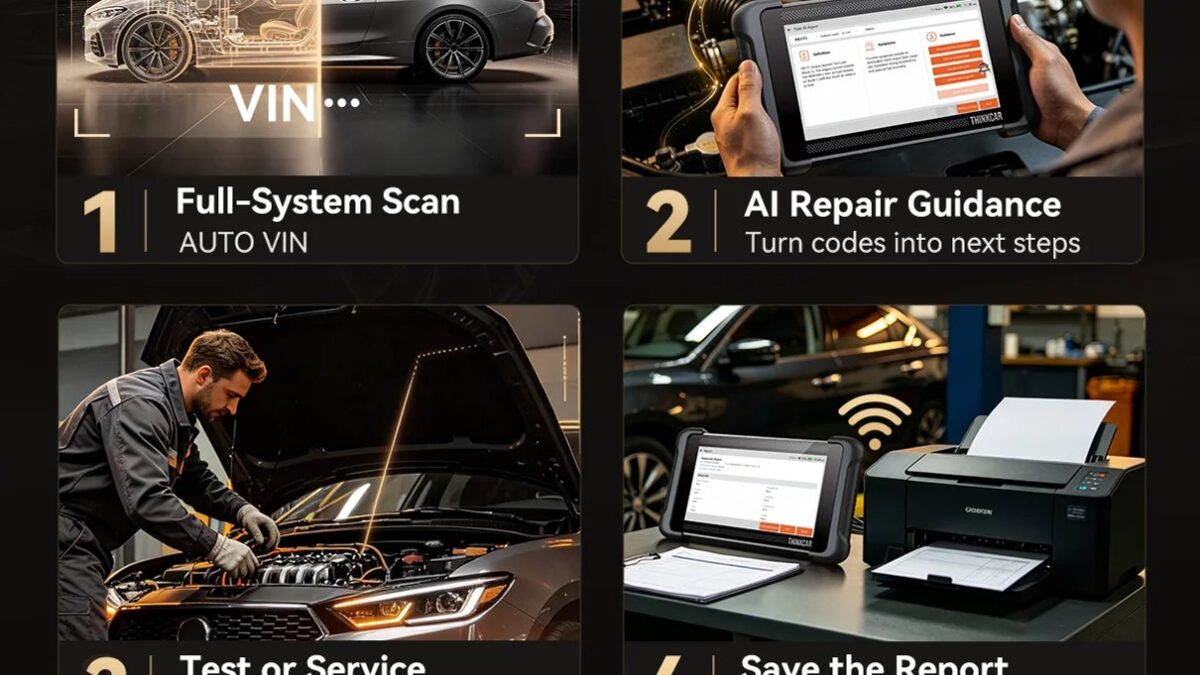

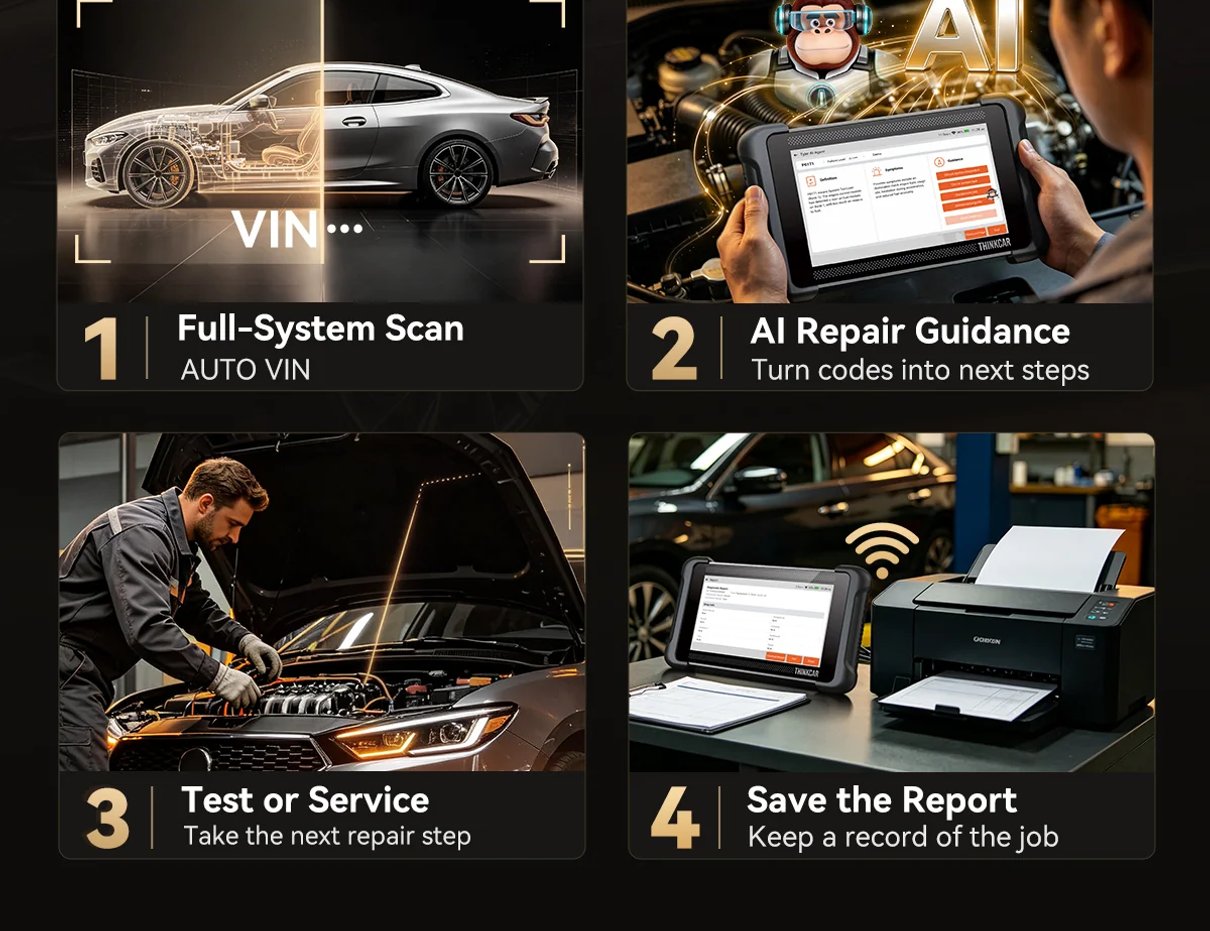
A clear sequence for matching diagnostic jobs, vehicle coverage, screen format, and ownership terms to a scanner you can use confidently.
Choosing a car scanner gets complicated when feature lists mix routine maintenance with advanced diagnostics. The useful question is narrower: which jobs do you need the tool to support on the vehicles you actually work on?
We reviewed the US product pages for thinkcar’s scanners and accessories. Their specifications are model-specific, so this guide starts with your workflow and then maps it to a few concrete options.
Some links in this article are affiliate links: if you make a purchase through them, we may receive a small commission.
Highlights
- Start with your jobs: routine resets, system diagnosis, active tests, or key programming.
- MUCAR X93 combines a 10.1-inch display, topology mapping, bidirectional control, ECU coding, and 41+ service functions.
- THINKSCAN 673BT is a wireless handheld with a 7-inch screen, 28 service functions, CAN FD, and DoIP.
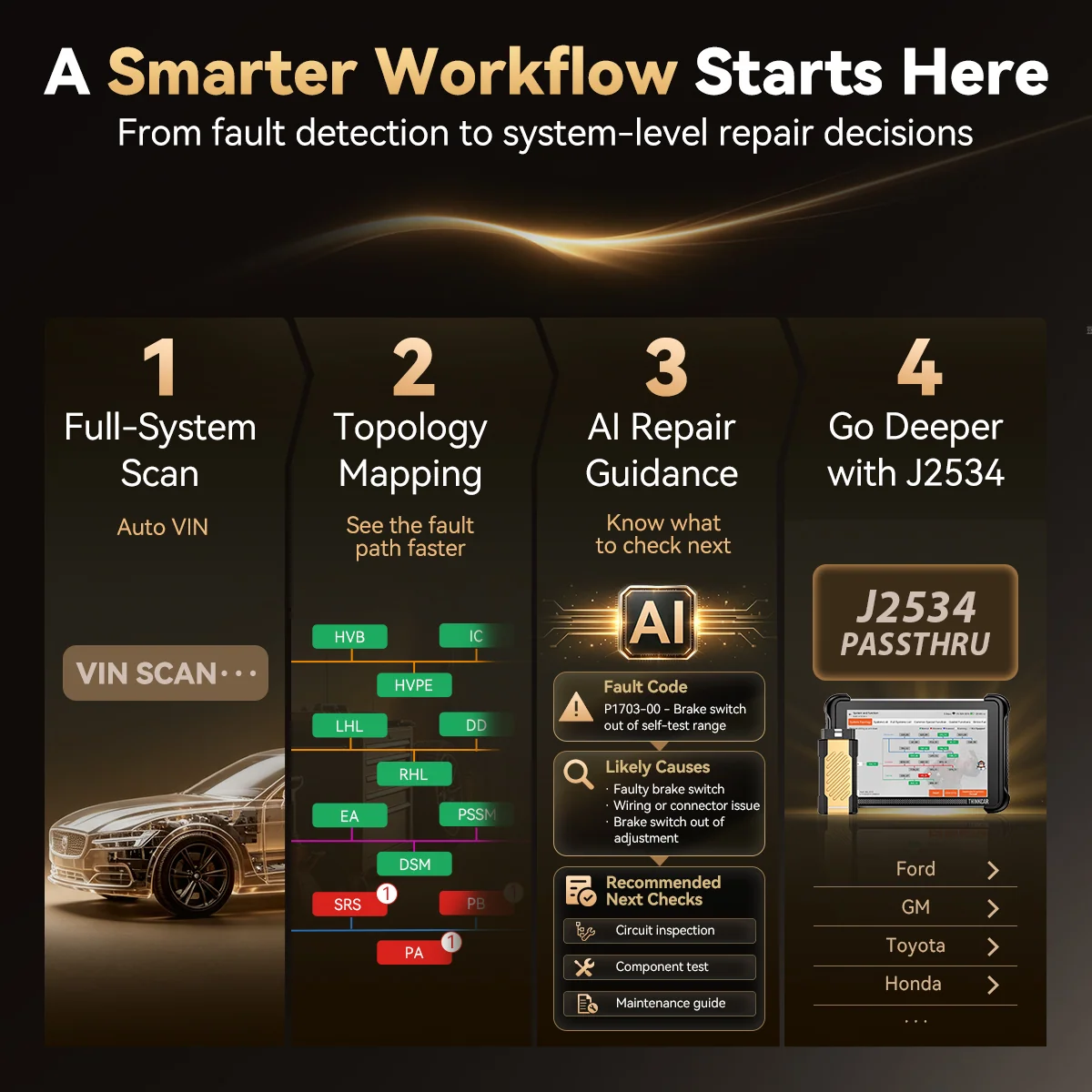
- THINKSCAN 689BT PRO lists topology mapping, J2534 pass-through, ECU coding, and 4,000+ active tests.
Think of these models as different starting points, not interchangeable versions of one tool. Compatibility, supported procedures, and update arrangements matter as much as the headline feature count.
Step 1: Write down the jobs you need covered
Begin with the work, not the device. A driver who mainly wants to read fault codes and handle a small set of maintenance resets has a different need from a technician tracing communication issues, commanding components, or coding supported modules. Make a list from recent jobs and separate routine tasks from occasional specialist work.
Use that list to filter claims on each product page. The MUCAR X93 lists full-system diagnostics, 41+ service functions, bidirectional control, ECU coding, and topology mapping. That combination may suit a broader diagnostic workflow, but actual functions depend on vehicle coverage. The THINKSCAN 673BT lists 28 service functions and active tests, which makes its published feature set a more focused handheld package.
Before comparing screen sizes, write down the procedures by name. “Reset service light” is too broad; note the exact task, system, and vehicle. Then use the store’s compatibility resources or contact support to confirm those procedures are available for your vehicle.
- List the systems you need to read, such as engine, ABS, airbag, or transmission.
- Mark which resets or relearns you perform regularly.
- Separate reading codes from commanding components or changing module settings.
- Flag any specialist work, including key programming, TPMS service, or guided procedures.
Step 2: Verify vehicle and procedure coverage
Compatibility is not a blanket promise. It can vary by make, model year, trim, installed modules, and the specific function requested. A scanner may communicate with a vehicle while still lacking a particular active test or relearn. Check the manufacturer’s coverage information for the exact vehicle and task instead of relying on a broad percentage or a general “full system” label.
The THINKSCAN 689BT PRO product page describes topology mapping, J2534 pass-through, ECU coding, and more than 4,000 active tests. Confirm its OEM support and functions against your intended work. Similarly, the MUCAR X93 lists CAN FD and DoIP support for compatible modern vehicle networks. Connector and protocol support alone do not guarantee each service function on every vehicle.
Keep a short compatibility record before you order: vehicle year and configuration, the module you need to access, and the procedure you expect to run. If the official lookup is unclear, ask thinkcar support and keep the answer alongside your purchase notes. That small check can prevent buying a capable tool that misses the one function your workflow depends on.
Step 3: Pick a format that fits your work area
A tablet gives more room for diagrams, live data, and longer reports. The X93’s listed 10.1-inch display and topology map point toward users who expect to spend time navigating system relationships. A handheld can be easier to carry between vehicles or use during a quick check. The THINKSCAN 673BT pairs a 7-inch display with Bluetooth, so it offers a more compact arrangement while retaining a screen on the tool.
Ask where the scanner will live and how you will read it: at a stationary workbench, beside a vehicle, or while moving between bays? Consider whether you need a built-in screen, wireless connection, cable reach, and a stable place to set the device. Avoid treating “wireless” as a substitute for checking what connects wirelessly and what remains attached to the vehicle.
These format questions narrow the field without assuming that bigger is automatically better. If most jobs are brief and the tool travels, compare the handheld format first. If you routinely review maps and reports, a larger display may be worth considering. You can inspect the official listings for the X93 tablet, 673BT handheld, and 689BT PRO side by side.
Step 4: Compare the tools against your shortlist
With the job list and vehicle checks in hand, use this compact map to decide which product page deserves a closer read. It compares the published emphasis, not a guarantee that every feature works on every vehicle.
| Tool | Published emphasis | Consider it when |
|---|---|---|
| MUCAR X93 | 10.1-inch tablet, topology map, coding, bidirectional control, 41+ service functions | You need broad diagnostics and a larger display |
| THINKSCAN 673BT | 7-inch Bluetooth tool, 28 service functions, CAN FD and DoIP | You prefer a more portable handheld setup |
| THINKSCAN 689BT PRO | Topology mapping, J2534 pass-through, coding, 4,000+ active tests | Your work calls for advanced module access |
Now eliminate any option that misses a required task or vehicle. For the remaining choices, compare interface, connection method, and how easily you can get to the information you need. The 689BT PRO lists topology mapping, J2534 pass-through, ECU coding, and 4,000+ active tests, while the 673BT listing emphasizes Bluetooth diagnostics and 28 service functions. The X93 is the tablet-format option in this group. The best fit is the least complicated model that covers your confirmed work.
Step 5: Account for accessories and ownership
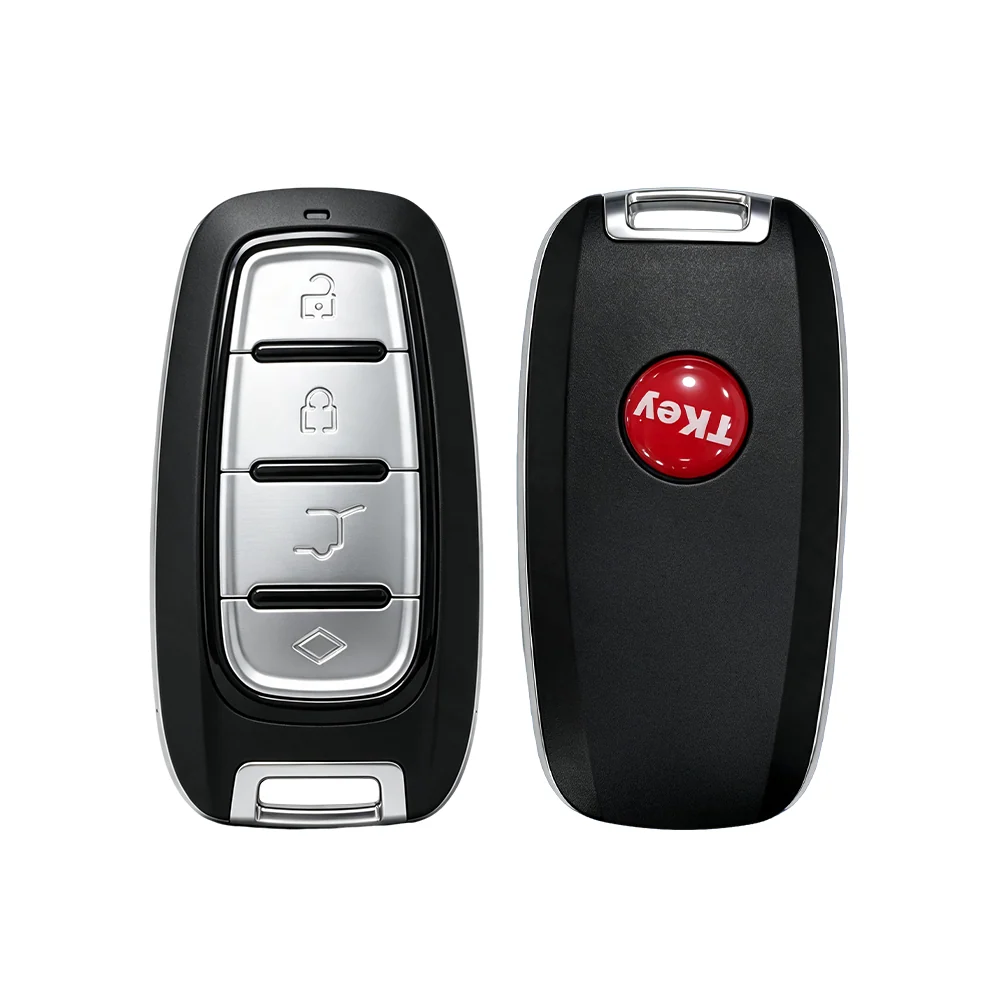
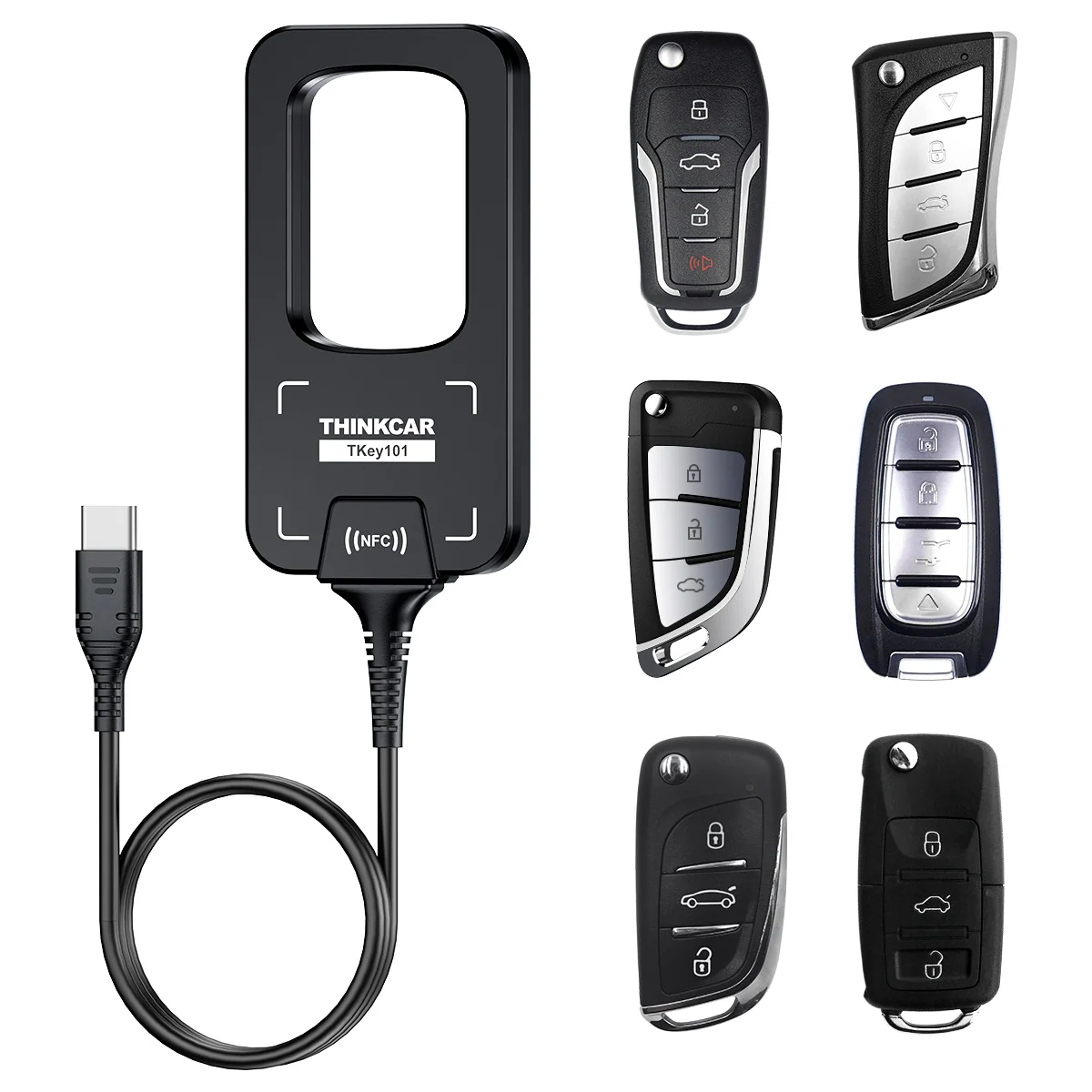
Some workflows need more than a scanner. Thinkcar’s US store also lists purpose-specific products such as the TKEY101 key programmer, which the page describes as supporting multiple key types and anti-theft data coverage. Treat key programming as its own requirement: confirm vehicle support, required connections, and whether a compatible scanner or other accessory is needed before choosing a bundle.
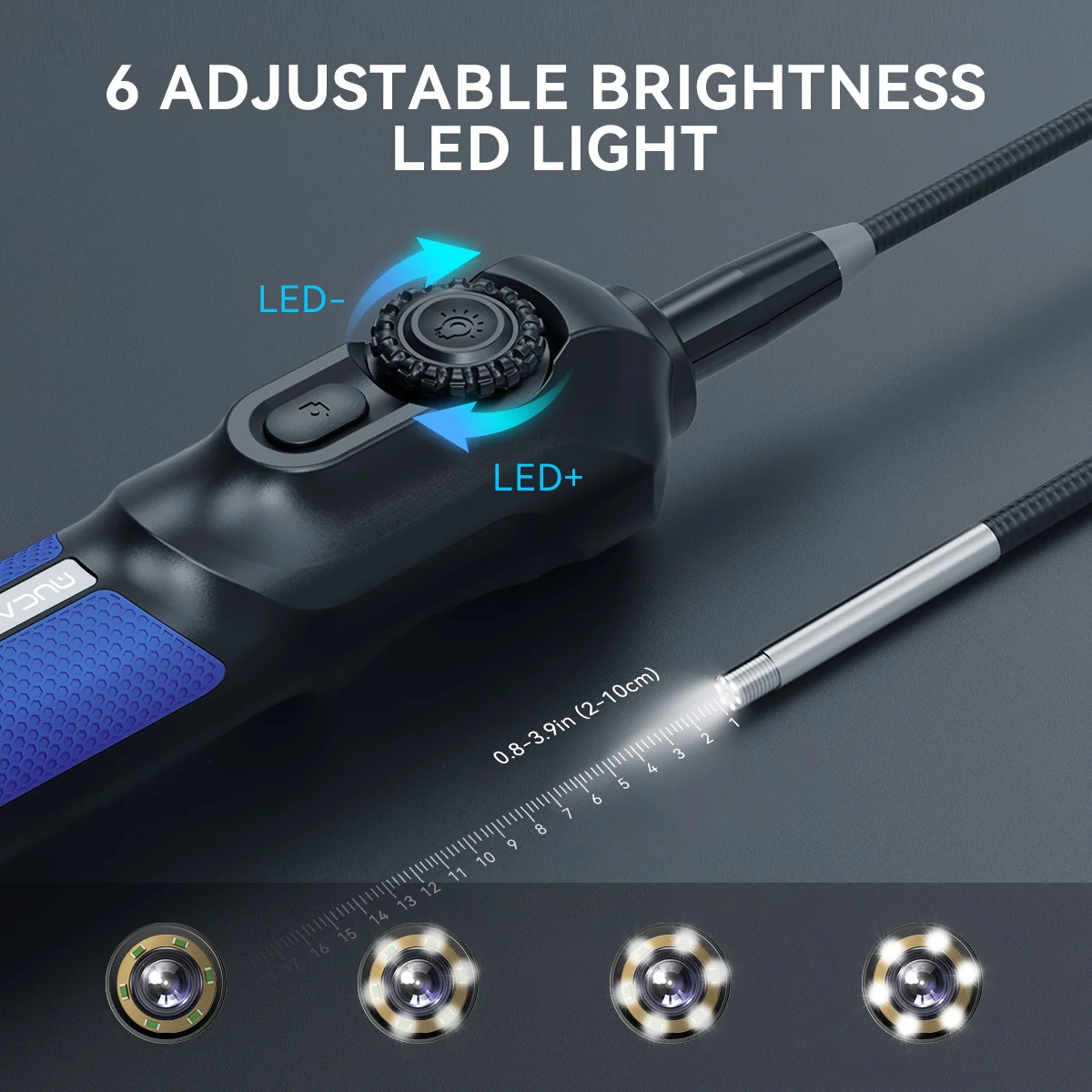
For visual inspection in cavities, the store’s USB endoscope listing describes a flexible articulating probe, an immersion-rated tip, adjustable lights, and image or video capture. For tire work, TPMS tools and sensors are another separate category. These accessories should enter your plan only if they address a real job on your list. An accessory can add capability, but it also adds compatibility checks and setup steps.
Then check ownership details on the product page. Look for software update terms, whether functions require an account or subscription, included cables or adapters, warranty coverage, and return conditions. The product page is the source of truth for the exact package and terms; these can change. Compare the current listed price only after the shortlist is correct, since screen tier, included accessories, and update arrangements can affect the total cost over time.

- Check what is included in the box and what is an optional add-on.
- Confirm update policy, account requirements, and any renewal terms.
- Review warranty, return, and support details on the US store listing.
- Compare total ownership needs, including a required adapter or specialist accessory.
These checks are especially useful when comparing a scanner with accessory ecosystems. The THINKSCAN 689BT PRO page describes support for add-ons such as an endoscope and TPMS devices; read its compatibility notes before assuming a particular accessory is included. Likewise, the separate TKEY101 listing should be checked against both the vehicle and the intended key procedure.
Where thinkcar’s scanner range can fit
- Several formats and diagnostic tiers let buyers start from their actual workflow.
- Selected models list topology mapping, bidirectional tests, coding, or broad service functions.
- Accessory listings cover distinct jobs such as key programming, TPMS, and visual inspection.
Limits to keep in the decision
- Function support varies by vehicle, module, and procedure, even when network support is listed.
- Feature counts do not explain which specific tasks are available for your car.
- Some specialist work may require a separate accessory, compatible device, or additional setup.
On the product pages, the broad feature set is attractive, but compatibility is the limiting factor to resolve first. A shorter feature list that supports your exact vehicle and procedure can be a better purchase than a more advanced tool that does not.
Questions to settle before ordering
How do I check scanner compatibility with my vehicle?
Use the store’s coverage lookup with your exact year, make, model, and named procedure or module, and verify details on the MUCAR X93 listing. If a function is unclear, confirm it with thinkcar support before you order.
Do scanner updates or subscriptions affect ownership?
Terms vary by product. Read each listing for update terms, account requirements, renewals, and any paid software terms; do not infer one model’s policy from another.
Are accessories included?
Check the package contents on the product page. A separately listed endoscope, TPMS device, adapter, or key programmer may be an add-on rather than part of a scanner bundle.
Which thinkcar scanner should you choose for your work?
Choose the MUCAR X93 if a larger tablet, mapping, and broad diagnostic functions line up with confirmed jobs. Consider the THINKSCAN 673BT when a wireless handheld suits your day and its listed services cover your tasks. Look at the THINKSCAN 689BT PRO when your workflow calls for the advanced capabilities named on its listing, after verifying the OEM and vehicle scope.
The honest limitation is that a product page cannot guarantee every procedure on every configuration. Confirm your vehicle and required job with thinkcar before ordering, then check the current product details and ownership terms on the US store.
